
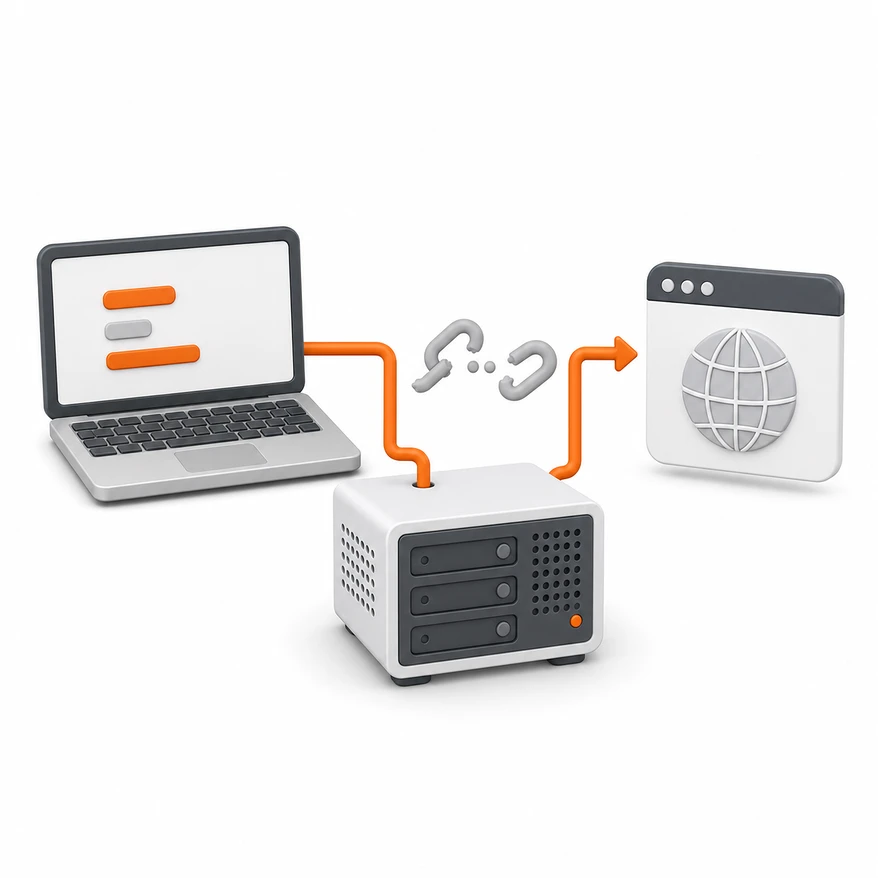
You can generate code, but the environment it needs to run does not appear on its own.
Listening to explanations of vibe coding today, it is easy to get the impression that anyone can build a program or website simply by talking to AI.
Describe the feature you want, and AI writes the code. If an error appears, you can ask another question and have it corrected. Development, once seen as something only people who had studied programming could do, has certainly become more accessible to people without that background.
But once you try vibe coding yourself, you soon encounter an important reality. Creating code and turning that code into a service people can actually use are two very different tasks.
AI can generate code quickly. It does not automatically prepare the computer environment, server, network, database, domain, and security setup that the code needs.
In this article, I will discuss the benefits and practical limits of vibe coding from a non-programmer’s perspective, and what it takes to turn code into a working service.
Key Takeaways
- Vibe coding is the process of creating and modifying code through conversations with AI.
- Before you can run code, you need a development environment.
- A program running on your own computer is different from a live web service.
- People without a programming background get stuck on servers, networking, and deployment more often than on code itself.
- To use AI effectively, you need to describe your environment and errors accurately.
- Vibe coding is a starting point for development, not a finished product.
What Is Vibe Coding?
To me, vibe coding means more than simply asking AI to generate code. It is the process of running the code AI produces, checking the results, and fixing errors to create something you can actually use.
Describe a feature to AI, and you can receive code quickly. Try running it, then send back any error messages, and you can get a revised version. Repeating this process makes it much easier for someone without a programming background to begin developing software.
You do not have to memorize every rule of a programming language or write all the code yourself from scratch. You can shape a program by describing the features you want, running the code AI provides, and making changes. This is the greatest advantage of vibe coding.
However, there is one important prerequisite for vibe coding to work properly: you need an environment in which the code can run.
Why Does Everything Look So Easy on an Expert’s Screen?
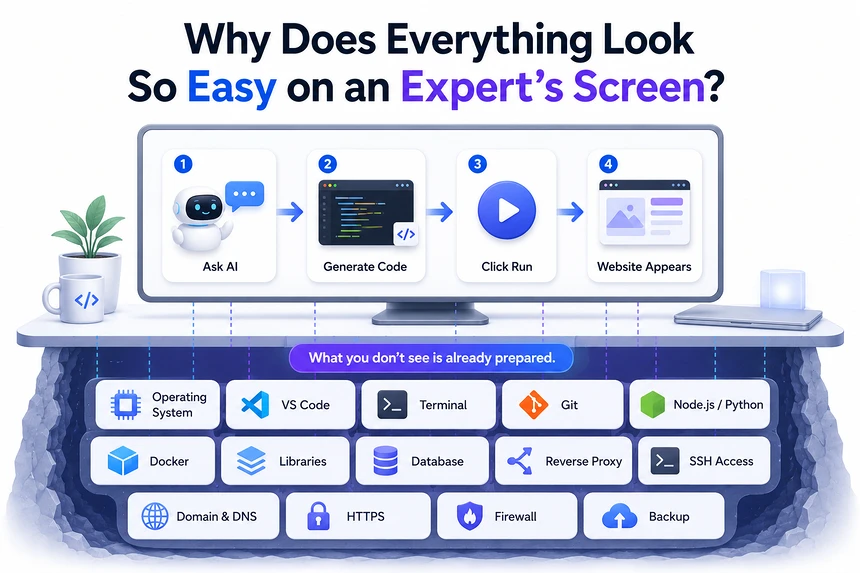
When an expert demonstrates vibe coding in a video, the process looks very simple.
- Ask AI for a feature.
- Receive the generated code.
- Click the run button.
- A website appears.
Watching this alone, you might think that even a complete beginner could build a website in a few minutes. But the expert’s computer often already has the environment needed to develop and run it.
- An operating system and development tools, Visual Studio Code, and a terminal
- Git, a project repository, and Node.js or Python
- The libraries required to run the program
- Docker, Docker Compose, and a database
- A web server, a reverse proxy, and a way to connect to the server
- A domain, DNS, and an HTTPS certificate
- Router and firewall settings, and a backup and recovery setup
An expert already understands what these tools do and where to start looking when something goes wrong. Even if the video shows only AI generating code, a considerable amount of preparation has already taken place.
For someone without a programming background, this hidden preparation is often the first obstacle.
Questions Beginners Encounter When They Start Vibe Coding
Suppose AI has generated some code for you. Receiving the code is straightforward. What follows raises a series of questions.
- Where should I save this code, and which program should I use to run it?
- Do I need Node.js or Python, and where should I open the terminal?
- Which folder should I run the command in, and what does
npm installinstall? - Why do I need a port number, and why does it work on
localhostbut not from another computer? - Why does the program stop when I turn off my computer, and what do I need to do to access it through a domain name?
- Where should I store information about users who sign in?
At this stage, beginners may struggle to tell whether they are modifying code, configuring a server, or troubleshooting a network problem.
AI can suggest commands. But if you cannot describe your environment accurately, its answer may not fit your situation. The same command can behave differently depending on whether you are using Windows, Ubuntu Server, or a Docker container, whether you have administrator privileges, and which project folder you are in. Software versions and file paths can also affect the result.
The Difference Between Code and a Live Service
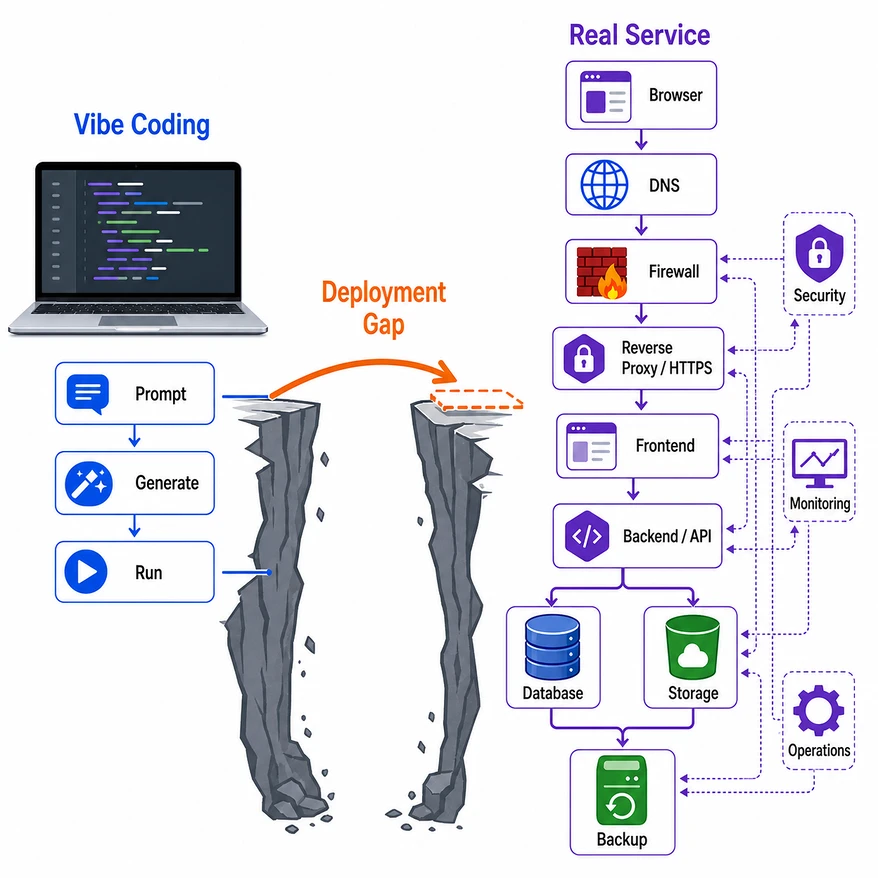
With AI, you can build an interface using React and Vite. You can also write backend code with Node.js or FastAPI. Features such as a login screen, a message board, and image uploads can be implemented to a certain extent.
But code running on your computer does not automatically become a live web service.
From Code to a Service
What it takes to become a working website
Write code → Run it locally → Fix errors → Prepare a server → Transfer the project → Install the runtime environment → Connect the database → Configure Docker → Connect the web server → Configure the domain → Enable HTTPS → Check external access → Configure security → Review logs → Set up backup and recovery → Maintain the service
There are many steps between seeing a result on your development screen and letting other people access it through an Internet address.
A Login Screen Is Different from a Working Login System
Creating a login screen is relatively easy. Running a real login system requires decisions about where to store user information, how to store passwords securely using one-way hashing, how to keep users signed in, and how to assign different permissions to regular users and administrators.
You also need to ensure that data survives a server restart, plan how to recover if the database stops, and decide how to log login attempts and block suspicious access. These concerns go beyond interface design and involve the database, backend, server, network, and security.
The Most Common Misconception About Vibe Coding
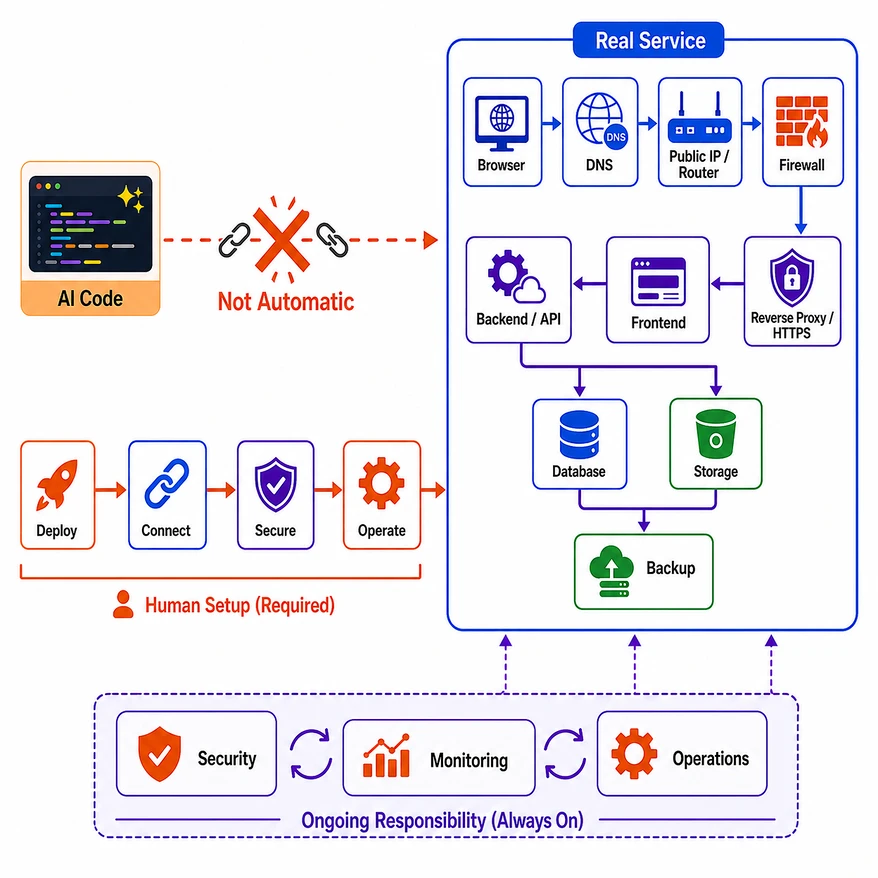
Once AI generates the code, everything else will take care of itself.
AI writes code quickly. In an environment that is already configured, that code may run immediately. This can make it seem as though a substantial result has been achieved in very little time. A live service, however, requires several components beyond the code to work together.
User’s browser → DNS lookup → Public IP address and router → Firewall → Reverse proxy → Frontend → Backend → Database → Storage and backups
- The code may be correct, but the firewall may block the port.
- A container may be running, but its port may not be exposed for external access.
- The database may be running, but the username or password may be wrong.
- The domain may point to the right server, but the reverse proxy may forward requests to the wrong port.
- The website may load, but uploaded files may disappear after a server restart.
- HTTPS may be enabled, but a backend API address configured with HTTP may cause errors.
For a beginner, the hardest part may not be an individual line of code. It may be identifying where the error is occurring.
Why “Just Follow These Steps” Can Fail
Many courses and videos tell you to enter commands exactly as shown. If your environment matches the presenter’s, this is likely to work. In practice, everyone’s computer environment is different.
- Windows and Ubuntu versions, as well as software installation locations, vary.
- Server IP addresses, router settings, firewall rules, and ports already in use vary.
- Folder and file permissions differ, and existing software may conflict.
- Programs running in Docker containers may coexist with programs installed directly on the operating system.
- Commands and configuration methods may change in newer versions.
When a problem occurs, an expert checks the logs. They inspect service status and ports, then locate configuration files to narrow down the cause. A beginner, however, may not know where to start once an error message appears. The “just follow these steps” approach reaches its limits when the environment differs even slightly.
Can You Solve Every Problem by Continuing to Ask AI?
AI is a powerful tool for people without a programming background. It can help interpret error messages, explain commands, modify configuration files, write and review code, suggest checks for possible causes, analyze logs, organize deployment procedures, and explain security precautions.
But AI does not always know the exact state of your computer or server. For example, “I cannot connect over SSH” is not enough information to identify the cause.
- Is the SSH service running, and is the server IP address correct?
- Is the SSH port open, and does the UFW firewall allow the connection?
- Is port forwarding configured on the router?
- Does the connection fail from the local network, from outside it, or both?
- Are you using password authentication or an SSH key?
- Is the connection refused, or does it time out? What is the actual error message?
The more accurately you describe your environment and its current state, the more accurate AI’s answer can be.
Basic Skills You Need to Use AI Effectively
- Check which computer you are working on and which folder you are running commands in.
- Record the commands you run and their results, and copy error messages accurately.
- Compare the state before and after a command, and distinguish file paths and the roles of different programs.
- Check how a command will affect the server and prepare a way to undo the change.
- Keep passwords and tokens private, and back up before making changes.
Without this basic understanding, repeatedly copying and running commands suggested by AI can make a problem worse. Commands involving firewalls, SSH, disks, databases, and Docker volumes can be especially disruptive: running them incorrectly can cause loss of access or data.
The Limits of Vibe Coding Go Beyond Coding Skills
The difficulties beginners encounter with vibe coding are not simply caused by unfamiliarity with programming syntax. A bigger challenge is understanding the entire environment around the program.
| Area | What you need to understand |
|---|---|
| Development environment | Software installation, versions, and file paths |
| Frontend | The interface users see |
| Backend | Application behavior and data processing |
| Database | Data storage and recovery |
| Linux · SSH | Server operating systems, users and permissions, and connecting a Windows 11 PC to a server |
| Network · DNS | IP addresses, ports, routers and firewalls, and connecting a domain to a server address |
| Reverse proxy · HTTPS | Routing requests by domain, encrypted communication, and certificates |
| Docker | Isolating runtime environments and services |
| Security · Operations | Accounts, permissions, protecting secrets, logs, updates, and incident response |
| Backup | Backing up and restoring data |
AI can explain each of these areas. But for someone without a programming background, understanding how all these technologies fit together from the outset is difficult.
The important question is not just “Can I write code?” It is “Where and how can I run the code I create, and how securely and reliably can I keep it running?”
Does That Mean Beginners Cannot Use Vibe Coding?
No. Vibe coding greatly expands what people without a programming background can do. It lets them try software development for themselves when getting started might previously have felt out of reach. It is also useful for creating simple automation tools, personal programs, and small web services.
The key is to set realistic goals and a learning sequence instead of trying to build a complete, large-scale service from the beginning.
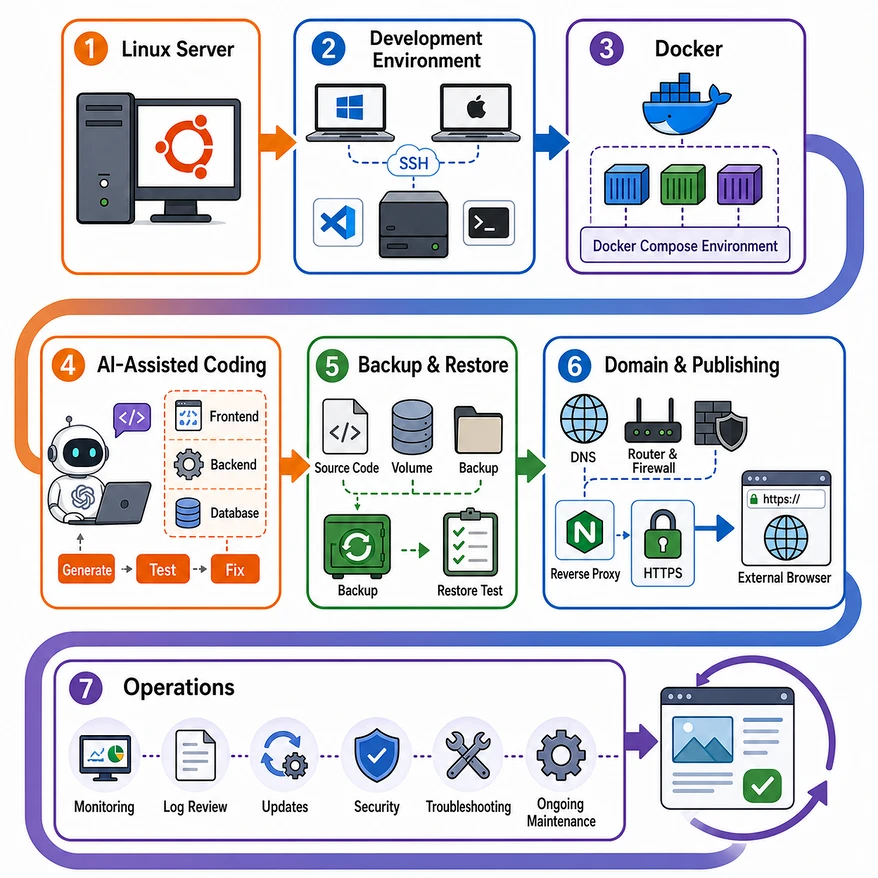
The Vibe Coding Learning Path Ahead
Building on the ideas in this article, I plan to set up a server and an environment for AI-assisted vibe coding in the following order.
Stage 1: Set Up a Linux Server
First, we will install Ubuntu Server 26.04 LTS on an older computer to create a Linux server for development and running services.
This stage covers:
- Preparing the Ubuntu Server installation image
- Creating a bootable USB drive with Rufus
- Installing Ubuntu Server
This turns an unused older computer into a Linux server that we can use for development and services.
Stage 2: Set Up the Development Environment
We will create an environment that lets us connect to the Linux development server from a Windows or Mac computer and carry out development work.
This stage covers:
- Connecting to a Linux server from Windows and Mac
- Basic SSH concepts and connection settings
- Connecting with a password or an SSH key
- Connecting to the Linux server through Visual Studio Code
- Transferring files and managing project folders
- Installing development tools such as Git and Codex
- Preparing for AI-assisted vibe coding
Once this stage is complete, we will be able to manage files and programs on the Linux server directly while working from Windows or Mac.
Stage 3: Set Up a Docker Runtime Environment
We will install Docker on the Linux server so that programs can run reliably in a consistent environment.
This stage covers:
- Basic concepts of Docker and containers
- The difference between Docker images and containers
- Installing Docker and checking that it runs
- What Docker Compose does and how to install it
- Managing multiple containers as one project
- Understanding container ports, volumes, and networks
- Running the frontend, backend, and database separately
Docker helps reduce differences between development and server environments, making it easier to run and manage multiple programs.
Stage 4: Develop with AI-Assisted Vibe Coding
After learning the components that make up a website, we will use AI to build a basic site and add the features we need one at a time.
This stage covers:
- The basic structure of a website and how it works
- The difference between the frontend and backend
- The role of a database and how data is stored
- Building a basic website
- Using AI to generate and modify code
- Adding features in small increments
- Reading error messages and asking AI for help
- Running and checking the website in Docker
Instead of building a complex service all at once, we will first get a basic site running, then gradually add features such as login, data storage, and image uploads.
Stage 5: Set Up Backup and Recovery
We will prepare to keep our code, configuration files, and database data safe and restore them when something goes wrong.
This stage covers:
- The difference between source code and data
- Tracking code changes with Git
- Backing up project files
- Backing up Docker volumes and databases
- Managing configuration files and secrets
- Setting up automatic backups
- Practicing recovery from backup files
Backup does not end with copying files. A backup is only dependable once you have confirmed that you can restore it.
At this stage, we will establish basic backup and recovery procedures before making the service public. After launch, we will continue automatic backups and regular recovery checks as part of Stage 7, ongoing operations.
Stage 6: Connect a Domain and Make the Service Public
We will turn the website running on the Linux server into a service that other people can access over the Internet.
This stage covers:
- The difference between public and private IP addresses
- The roles of domains and DNS
- Configuring A records and CNAME records
- Router port forwarding
- Configuring a reverse proxy
- Connecting the domain to the website
- Applying an HTTPS certificate
- Configuring a firewall and basic security
- Checking external access and service status
After this stage, users will be able to visit the website using a domain name instead of an IP address and port number.
Stage 7: Additional Setup and Ongoing Operations
We will cover useful additions to the setup from Stages 1 through 6, along with the work needed to operate a live service.
This stage may include:
- Reviewing server logs
- Checking Docker container status
- Configuring services to start automatically
- Strengthening server security
- Blocking suspicious access
- Checking storage space and system resources
- Investigating the causes of failures
- Updating software
- Improving performance
- Automating backups and regularly checking recovery
Rather than a separate final task, this stage is an ongoing effort to make the environment we have built safer and easier to manage.
Working through these stages yourself helps you see how Linux, SSH, Docker, databases, DNS, and HTTPS—technologies that may initially seem unrelated—fit together as parts of a web service.
More Code Is Not What Beginners Need Most
What beginners need most is not to memorize large amounts of code. It is more important to recognize which stage they are working on and where a problem is occurring.
For example, you need to be able to narrow down a problem by asking questions like these.
- Is the Linux server running normally?
- Can I connect to the server from Windows or Mac?
- Are the Docker containers running normally?
- Are the frontend, backend, and database connected to one another?
- Does the service run from inside the server but remain inaccessible from outside?
- Is there a problem with the domain, DNS, or reverse proxy settings?
- Is a firewall or security setting blocking access?
- Do I have backups that can restore the code and data?
Once you can make these distinctions, you can describe your situation to AI more accurately and identify the cause of a problem much faster.
Conclusion: Vibe Coding Is a Starting Point, Not the Finished Result
The goal of the work ahead is more than simply asking AI to write code.
We will install a Linux server on an older computer, connect to it from Windows or Mac, and configure a runtime environment with Docker. We will then build a website with AI, back up the code and data, and finally connect a domain and HTTPS to create a service that people can access from outside our network.
Vibe coding is not magic that automatically gives beginners a finished service. AI can help with code generation, error analysis, suggestions for fixes, structural improvements, documentation, and testing. But building a real service still requires you to prepare the server and runtime environment, connect the components, and investigate problems as they arise.
On an expert’s screen, a website may appear to work as soon as the code is entered. Behind that screen, however, the development environment, server, network, database, Docker setup, and deployment configuration are already in place. The real value of vibe coding lies in using AI to understand these environments and build a service that other people can access and use, rather than expecting AI to do everything for you.
Creating code is the beginning, not the finish. After this article, we will work through the preparation that is often invisible on screen, starting with Stage 1.
The Complete Process at a Glance
- Install Ubuntu Server 26.04 LTS on an older computer.
- Set up an environment for connecting to the Linux development server from Windows or Mac.
- Install Docker and Docker Compose to create an environment for running programs.
- Learn how a website is structured and develop features one at a time with AI.
- Set up backup and recovery for the code and database.
- Connect the domain, DNS, reverse proxy, and HTTPS to make the service public.
- Add the practices needed for ongoing operations, including logs, security, updates, and incident response.
We will begin with the first step: installing Ubuntu Server 26.04 LTS on an older computer to set up a Linux server.
Next Article
Preparing a Computer for Ubuntu LTS Server Installation
The next article covers:
- Downloading the Ubuntu 26.04 LTS Server ISO
- Identifying the correct 64-bit image for the target Intel or AMD computer
- Downloading Rufus and understanding the difference between its Standard and Portable versions
- Checking whether the target computer uses Legacy BIOS or UEFI
- Choosing MBR or GPT and the Rufus settings that match the boot mode
- Entering the BIOS or Boot Menu and setting USB boot priority
- Checking common problems when preparing the ISO, Rufus, and USB boot settings